One screen holds everything
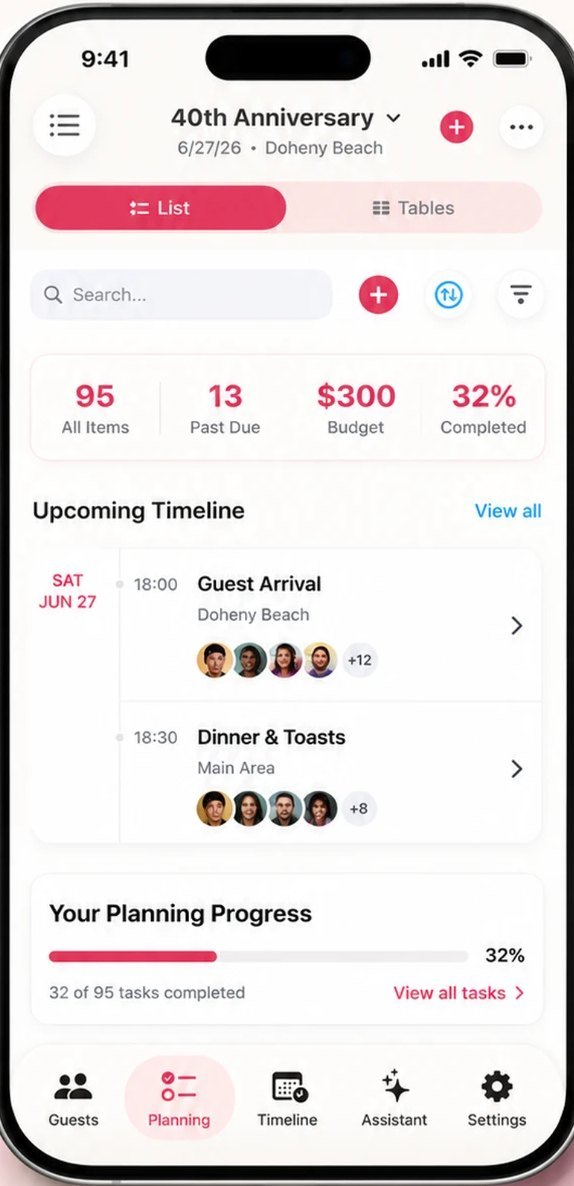
Tap + on the Select Event screen to start a party, then give it a name, a date and a start time. Everything else about the event lives in that same settings screen.
- Budget and Participation — what you plan to spend, and what each guest chips in
- Venue and address, theme and number of tables
- Duplicate Event — reuse a party you've already planned instead of starting over
Your planning hub then keeps the running totals in view: items, past due, budget and how far along you are.
Add everyone, then collect replies
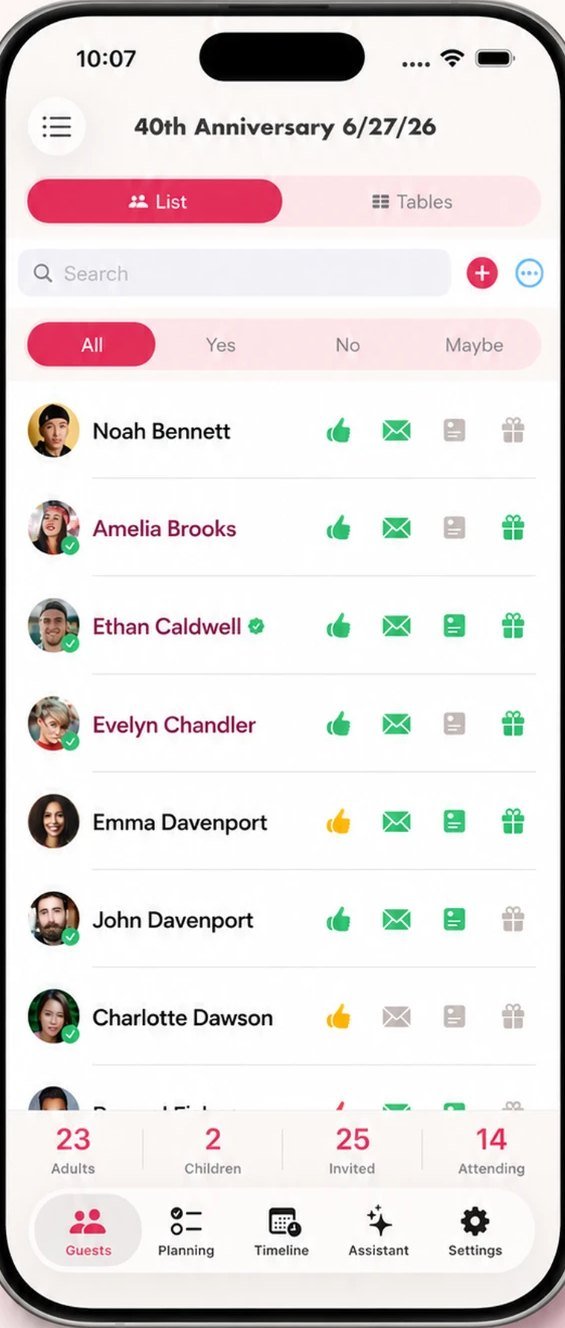
Build your guest list by hand or import straight from your contacts. Each guest gets four markers you can tap, so nothing slips: RSVP, Invitation, Thank You and Gift.
- Filter by Yes, No or Maybe at any time
- Running totals for adults, children, invited and attending
- Share one link — guests reply from any device, no app or account needed
Your guest list
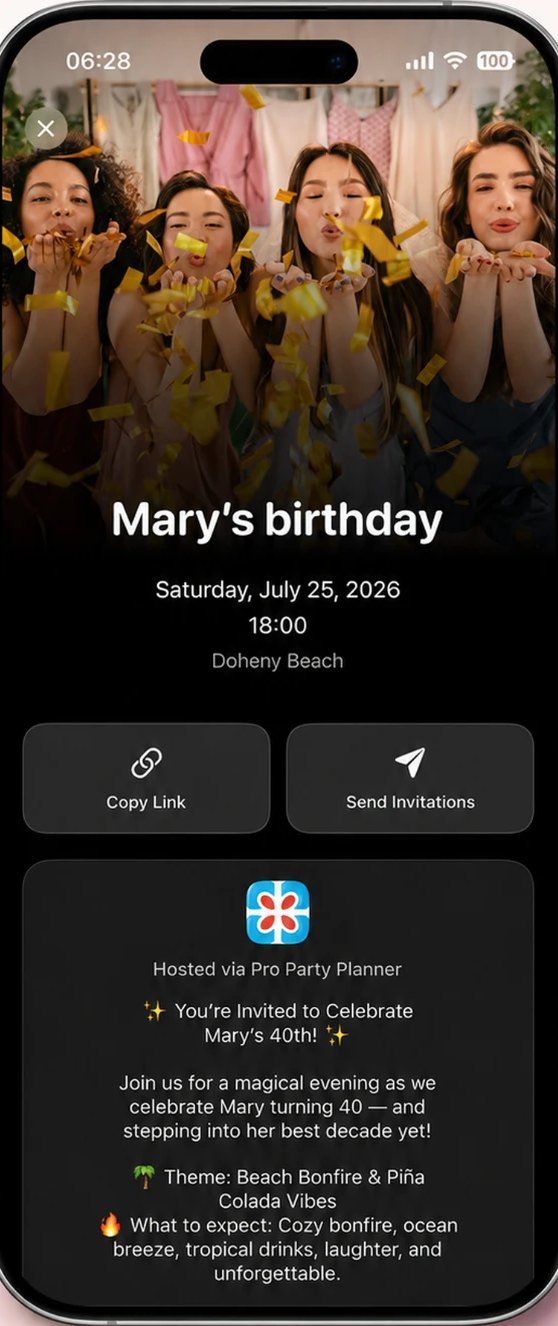
What guests receive
To-dos, shopping and spend in one view
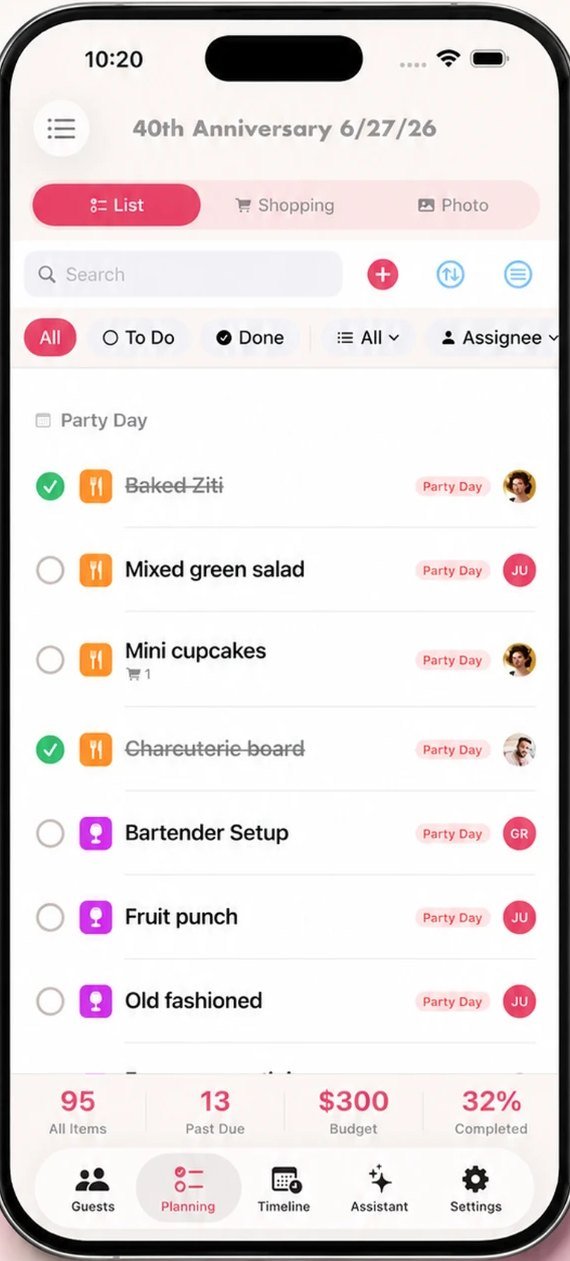
Smart Lists hold everything you need to buy, cook, book or borrow. Each item can carry a category, a due date, an assignee and a price — so your to-do list doubles as your budget.
- Switch between List, Shopping and Photo views
- Filter by To Do, Done, category or assignee
- The bar at the bottom tracks items, past due, budget and % complete
Tables, sorted in seconds
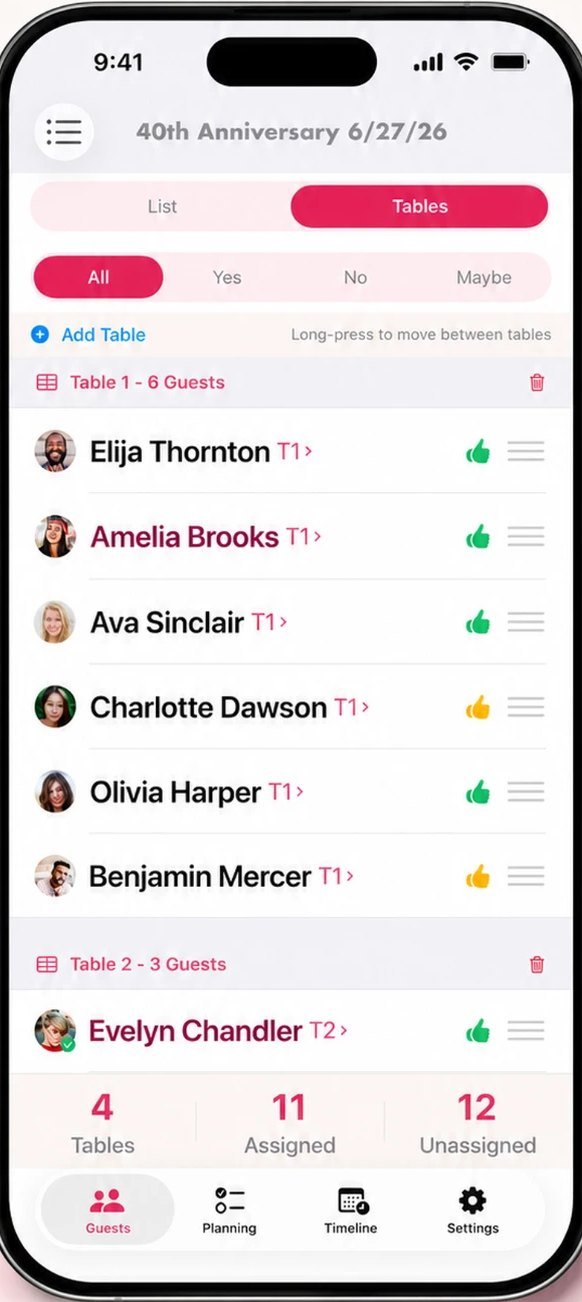
Switch the guest list to Tables, tap Add Table and long-press a name to move it between tables. RSVP status stays visible while you arrange, so you're never seating someone who already declined.
- Unlimited tables, instant re-seating
- Assigned vs. unassigned counts always on screen
A run of show for the day
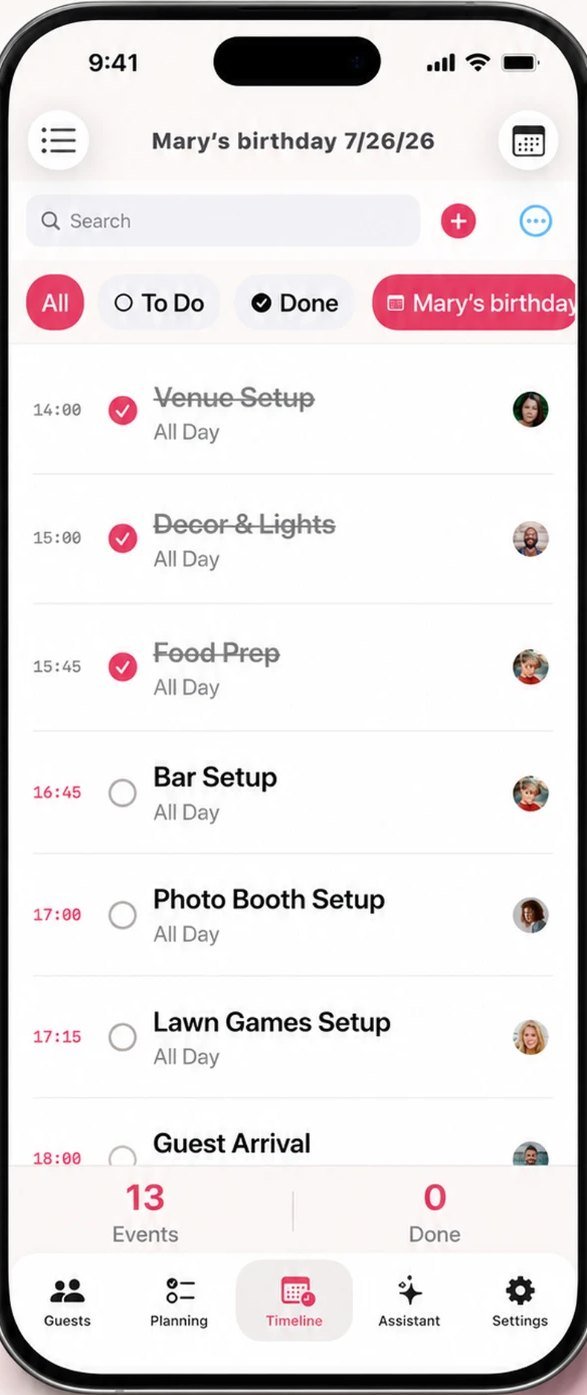
Lay out the party hour by hour — venue setup, food prep, guest arrival, speeches — and give each moment an owner. On the day you just work down the list and tick things off.
- Filter to To Do so you only see what's left
- Every event can be assigned to a helper
- Events and done counts tracked at the bottom
Plan the room, not just the list
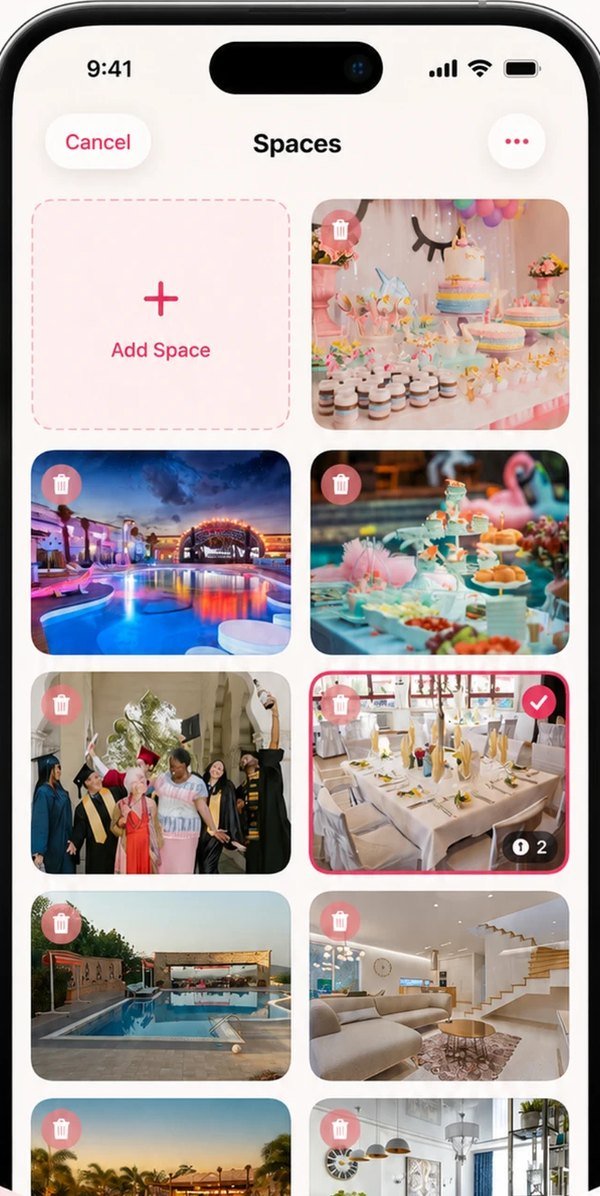
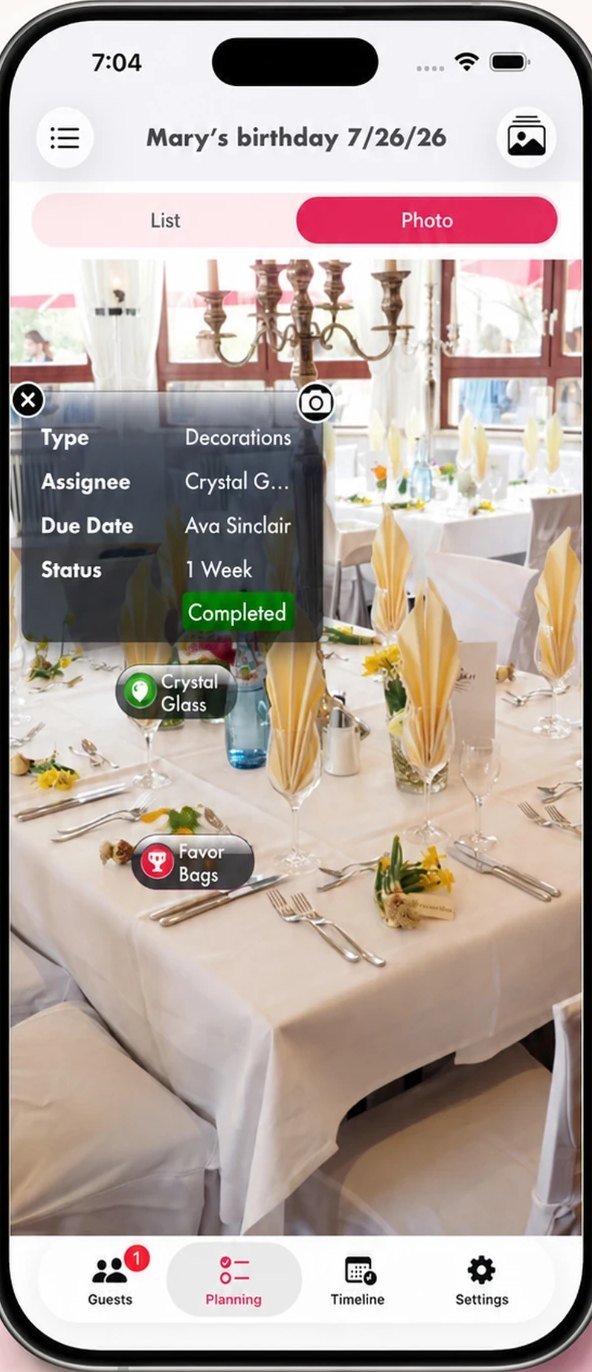
Add Spaces — photos of the rooms or areas you're using — then pin decorations, furniture and jobs directly onto them. Each pin is a real planning item with a type, an assignee, a due date and a status.
- Build a moodboard of every space in one place
- See exactly where things go before party day
- Tap a pin to check off what's done
Your spaces
Pins on a real photo
Or let AI do the first draft
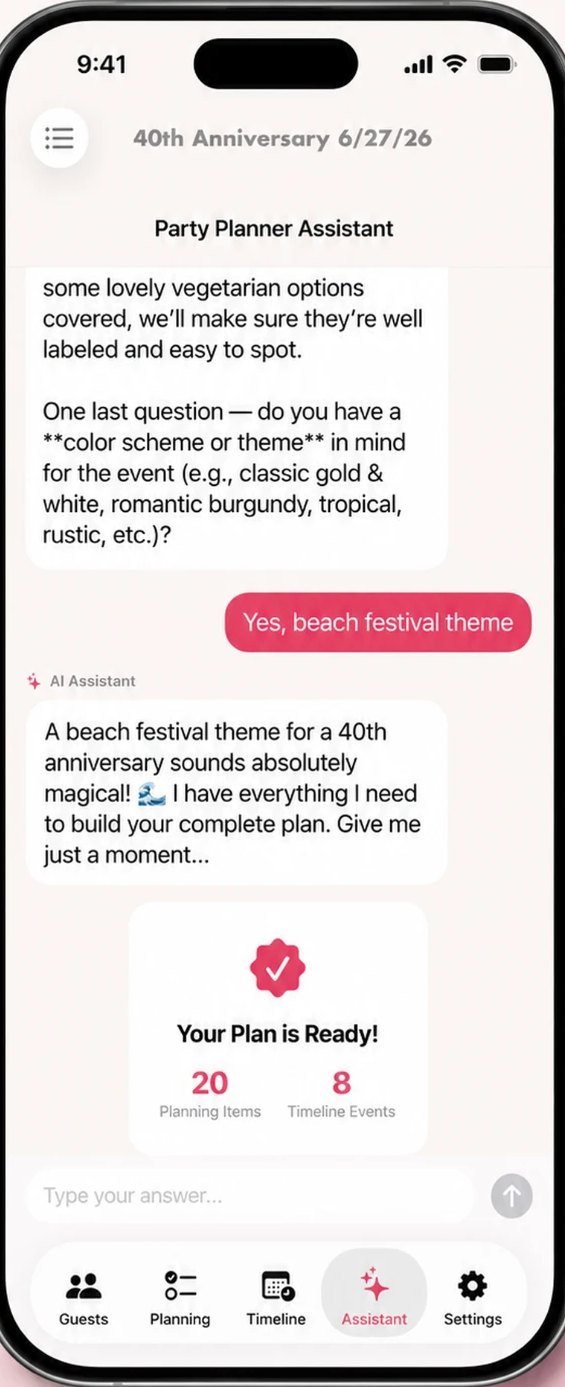
Short on time? The assistant can build the whole plan for you, then you edit from there.
Answer a few questions, get a plan
Open the Assistant tab and describe your party — the occasion, the guest count, the vibe. It asks a handful of follow-ups, then generates your planning items and timeline events in one go.
Everything it creates lands in your normal lists, fully editable — nothing is locked.
Prefer video? Open Settings → Support in the app for video tutorials, or read the invitation & RSVP guide next.
That's it — now have fun.
Free on the App Store, for iPhone and iPad.
 CNET Award Winner · Free download · iPhone & iPad